
DogPay card for ChatGPT Plus: how to sign up and avoid payment declines
 DogPayCard Editorial
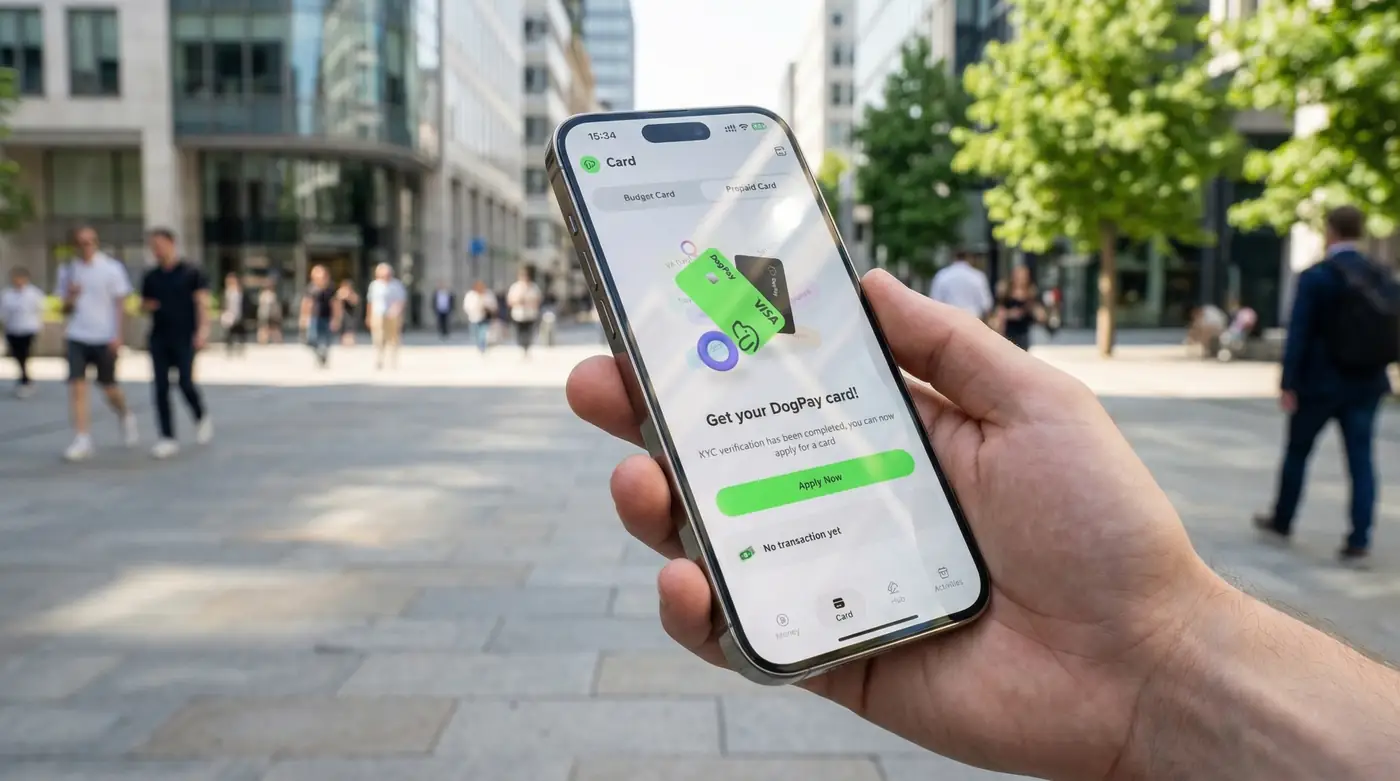
What you’re trying to do You want to subscribe to ChatGPT Plus and pay with a DogPay card, ideally without running into the common “payment failed” loop that can happen on global subscription checkouts.
This guide covers: How to pay for ChatGPT Plus using a DogPay card Why subscription payments fail (even when you have funds) Practical steps in DogPay to reduce declines and simplify renewal management
Note: ChatGPT Plus is a recurring subscription. Treat it like any other SaaS tool that will charge automatically each billing cycle.
How to subscribe to ChatGPT Plus with a DogPay card (step-by-step) 1. Create or choose a dedicated DogPay card for ChatGPT Plus If you manage multiple tools, using one card per subscription keeps renewals clean and makes it easy to isolate issues.
2. Set your budget / limits for the card Keep the limit comfortably above the monthly Plus price so small pricing/tax variations don’t trigger a decline.
3. Confirm your card details inside DogPay Use the card number, expiry date, and CVV exactly as displayed.
4. Go to the ChatGPT Plus upgrade screen In ChatGPT, select Upgrade / Get Plus and proceed to checkout.
5. Enter your DogPay card at checkout Make sure the billing information you enter is consistent and complete (see “Why payments fail” below).
6. After subscribing, keep the card funded for renewals Recurring billing usually attempts automatically. A dedicated card makes it easier to ensure the subscription always has room to renew.
Why ChatGPT Plus card payments or renewals fail Even legitimate cards can fail on international subscriptions. Common causes include: